Switch Types
Depending on the installation/activation method of the Hyper-V role and the target operating system, such as version and variant, we may find ourselves in a situation without any pre-created switch or with only the so-called Default Switch. The latter usually appears under consumer versions of Windows. Before we pay a little more attention to it, let’s recall what types of switches Hyper-V supports:
- Private Switch - allows communication only between virtual machines attached to it
- Internal Switch - allows communication between virtual machines attached to it and the host
- External Switch - allows communication between virtual machines attached to it, the host, and all other network devices attached to the same network as the network card associated with the switch
Perhaps it is more appropriate to compare them in a table like this:
| Switch | VM <-> VM | VM <-> Host | VM <-> world |
|---|---|---|---|
| Private | yes | no | no |
| Internal | yes | yes | no |
| External | yes | yes | yes |
We can manage all of these both through the graphical interface (Action > Virtual Switch Manager) and from the command line using commands like New-VMSwitch, Remove-VMSwitch, etc.
NAT Switch and Default Switch
Okay, but there is nothing above about the Default Switch, and even less about a NAT one. Why? What category are they?
Let’s address the questions one by one.
First, the Default Switch and the NAT switch are a kind of specialized Internal Switch. That is, they are not a separate category, but rather a special case of one.
Second, to a large extent their functions and capabilities overlap. In practice, both provide NAT functionality. The difference is that the Default Switch also offers DHCP functionality.
This leads to the next question. Why would we need to create a NAT switch then?
There are two good reasons for this. First, we may find ourselves in a situation where the Default Switch does not exist. Second, a custom NAT switch gives us more control, namely:
- we can choose a username and address space
- we can set port-forwarding rules
However, there are two bad news. First, we can only create a NAT switch from the command line. Second, there is no built-in DHCP capabilities.
Let’s address both “bad news”.
Creating a NAT Switch
Let’s imagine that we want to create a NAT switch named NAT vSwitch, with address space 192.168.99.0/24 and gateway 192.168.99.1.
This can be achieved in the following way:
-
Open a PowerShell session with Run as administrator
-
Create an internal switch:
New-VMSwitch -SwitchName "NAT vSwitch" -SwitchType Internal
- Assign an address to the newly created virtual interface:
New-NetIPAddress -IPAddress 192.168.99.1 -PrefixLength 24 -InterfaceAlias "vEthernet (NAT vSwitch)"
- Create a NAT network with an address space that includes the address of the virtual interface:
New-NetNAT -Name "NAT Network" -InternalIPInterfaceAddressPrefix 192.168.99.0/24
That’s it. We now have a NAT switch and we can start connecting machines to it.
Port Forwarding
Once we have all this, sooner or later the need to define port-forwarding rules will come up. Let’s see how this is done.
To make it easier, let’s take the following scenario:
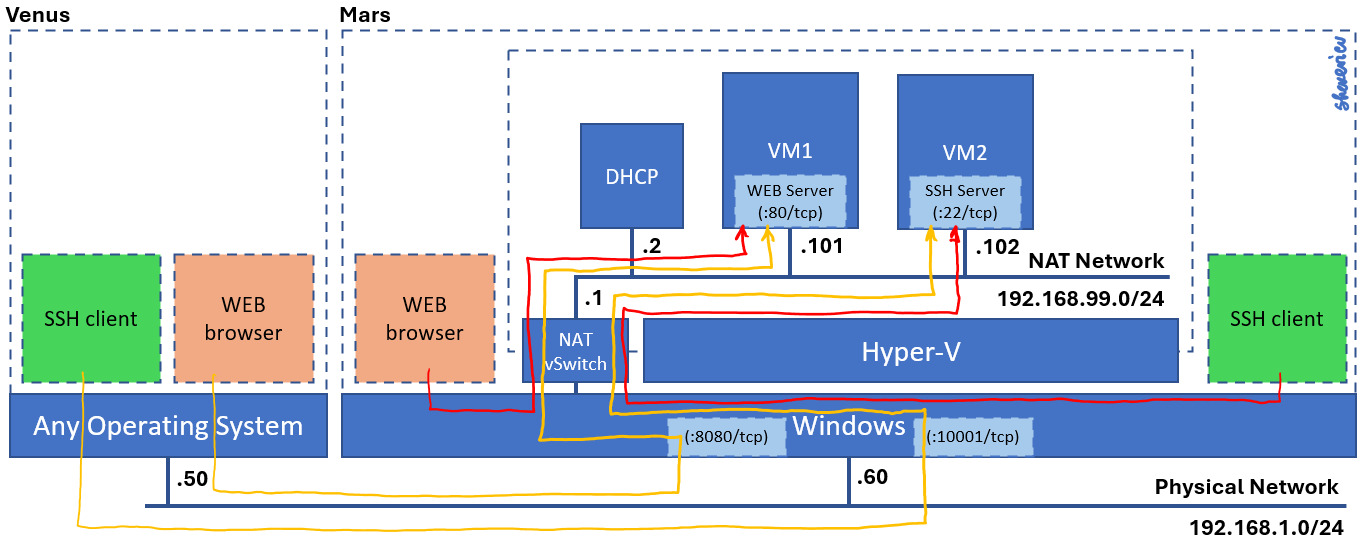
Here we have the following:
-
two hosts - venus (192.168.1.50) and mars (192.168.1.60)
-
on mars there is an active Hyper-V role, a NAT switch (192.168.99.0/24) and two virtual machines - VM1 (192.168.99.101) with an installed web server and VM2 *(192.168.99.102) with an installed SSH server
We have three main options for working with the services in the two virtual machines:
-
from another participant in the same virtual network
-
from the host on which the virtual machines run (mars)
-
from another participant (for example venus) in the physical network to which the host (mars) is connected
The first option is not of interest in this case.
The second option is actually a special case of the first, because the host (mars) is a participant in this same virtual network and can therefore reach each of the services using the IP address of the corresponding virtual machine and possibly the port on which the service listens (if it is different from the standard one). Here are two sample commands:
curl.exe http://192.168.99.101
ssh 192.168.99.102
The third option is the most interesting in this case and is possible precisely through port forwarding rules.
If we want to make the web service in VM1 accessible to the outside world on port 8080 on the host (mars), we need to execute the following command:
Add-NetNatStaticMapping -NatName "NAT Network" -Protocol TCP -ExternalIPAddress "0.0.0.0/24" -ExternalPort 8080 -InternalIPAddress 192.168.99.101 -InternalPort 80
Similarly, if we want to make the SSH service in VM2 accessible to the outside world on port 10001 on the host (mars), we will need to run the following command:
Add-NetNatStaticMapping -NatName "NAT Network" -Protocol TCP -ExternalIPAddress "0.0.0.0/24" -ExternalPort 10001 -InternalIPAddress 192.168.99.102 -InternalPort 22
Given these two rules, we can reach either service from another participant in the host’s physical network, for example venus, using a combination of the host’s IP address (192.168.1.60) and the corresponding published port (8080 or 10001).
Here are the two sample commands from earlier, but adapted for connection from venus, via mars, to the corresponding virtual machine and the service running in it:
curl.exe http://192.168.1.60:8080
ssh -p 10001 192.168.1.60
Of course, there are other commands related to managing port forwarding. For example, if we want to examine the available rules or remove some, we can use the Get-NetNatStaticMapping and Remove-NetNatStaticMapping commands, respectively.
Let’s support these two commands with examples.
If we want to see a list of the already defined forwarding rules for our NAT switch and the network connected to it, it is enough to execute the following command:
Get-NetNatStaticMapping -NatName "NAT Network"
Here we need to remember their StaticMappingID. We will need them to delete the rules.
If we want to delete the two rules we defined earlier, we can do the following (we assume their ID numbers are 0 and 1 respectively):
Remove-NetNatStaticMapping -NatName "NAT Network" -StaticMappingID 0
Remove-NetNatStaticMapping -NatName "NAT Network" -StaticMappingID 1
We now have everything we need and control is in our hands.
Cleaning
Finally, if we want to remove the NAT switch, we must first detach all virtual machines from it and then, in a PowerShell session started with Run as administrator, we must execute the following command:
Remove-VMSwitch -SwitchName "NAT vSwitch"
And What Happened to DHCP?
Okay, that’s clear, but we still haven’t addressed the problem of missing DHCP functionality.
That’s right. Unfortunately, there is no direct and easy solution, but on the other hand, we have complete freedom to improvise. All you have to do is create a small virtual machine in which to install a DHCP server and connect it to the switch in question.
For ideas and/or a ready-made solution, you can take a look here: https://github.com/shekeriev/ahvdhcp